
 FA+
FA+ Shop
Shop
8870
Views
Views
444
Favorites
Favorites
Category
Artwork (Digital) / Tutorials
Species Unspecified / Any
Size 1280 x 5000
File Size 2.85 MB
Report this content
More from Fivel


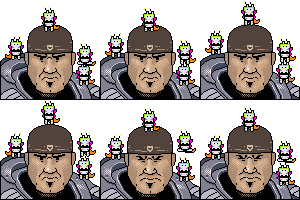
this is not a "how 2 draw a dragon/draw good" tutorial, this is more about certain tips and tricks in SAI that will make it a lot easier for you!!
Hope this tutorial makes sense... This is how I draw my full CG pieces. I take a slightly different approach to shading when I shade fur but this'll have to do ;)
I hope this helps some people ^_^ I made sure to include my settings so those with SAI can use them too.
*NOTE* A lot of these settings only apply to those with tablets.
I totally also hid the nipple so that EVERYONE can see the tutorial.
if you have any questions please feel free to comment here (so that others with the same question can see it too)
Comments and favs appreciated!!
PS. This lovely lady will be posted later ;))
Hope this tutorial makes sense... This is how I draw my full CG pieces. I take a slightly different approach to shading when I shade fur but this'll have to do ;)
I hope this helps some people ^_^ I made sure to include my settings so those with SAI can use them too.
*NOTE* A lot of these settings only apply to those with tablets.
I totally also hid the nipple so that EVERYONE can see the tutorial.
if you have any questions please feel free to comment here (so that others with the same question can see it too)
Comments and favs appreciated!!
PS. This lovely lady will be posted later ;))
Category Artwork (Digital) / Tutorials
Species Unspecified / Any
Size 1280 x 5000px
File Size 2.85 MB



that's fine! I have all different layers for different parts of the character (hair layer, clothing layer, skin layer, etc)
I took the skin layer and selected all of it, copied it and then pasted it. when you paste in SAI it makes it a new layer on top ^^ it is a duplicate of the skin layer. I clicked preserve opacity which locks it so it has the same exact shape/silhouette of the skin, and then completely covered it to be that warm color and then clicked multiply so it shows all her markings but just darkened
So to shade, (i use the airbrush), I took white and colored where I wanted the highlights to go. This basically is the same thing as erasing on the multiply layer, and you could use an eraser to do the same exact thing. I just use white because i find the airbrush a lot easier to shade with.
On the image that's split to show the shading on step #4, the part on the left is basically showing what I would be doing if the layer was just a normal colored layer instead of on multiply
XD hope that made sense... i'm not very good at explaining things lol
I took the skin layer and selected all of it, copied it and then pasted it. when you paste in SAI it makes it a new layer on top ^^ it is a duplicate of the skin layer. I clicked preserve opacity which locks it so it has the same exact shape/silhouette of the skin, and then completely covered it to be that warm color and then clicked multiply so it shows all her markings but just darkened
So to shade, (i use the airbrush), I took white and colored where I wanted the highlights to go. This basically is the same thing as erasing on the multiply layer, and you could use an eraser to do the same exact thing. I just use white because i find the airbrush a lot easier to shade with.
On the image that's split to show the shading on step #4, the part on the left is basically showing what I would be doing if the layer was just a normal colored layer instead of on multiply
XD hope that made sense... i'm not very good at explaining things lol
XD i used a mouse for years! It's still definitely do-able to use things like touchpads and mice, when I didn't have a tablet i simply went back with an eraser to simulate the pen pressure from the tablet :P I actually found shading with a mouse or touchpad a lot easier at times XD
just remember to keep practicing ^^
just remember to keep practicing ^^








http://i46.tinypic.com/ic23cm.jpg i hope that makes sense..
basically treat it like it's any other layer you're coloring; lock the layer so you can't go over it, and then simply just use whatever color you want =D
basically treat it like it's any other layer you're coloring; lock the layer so you can't go over it, and then simply just use whatever color you want =D

there are a lot of little tricks about SAI that I didn't know about, and still continue to learn!
I mainly only use the pen and airbrush tool for my art but there are tons of different great tools in SAI but unfortunately I haven't really experimented with them too much.. perhaps in the future i'll learn to use them to my advantage and keep on learning about this great program.
I mainly only use the pen and airbrush tool for my art but there are tons of different great tools in SAI but unfortunately I haven't really experimented with them too much.. perhaps in the future i'll learn to use them to my advantage and keep on learning about this great program.


i do! it's my very top layer. Perhaps it was just hard to see, since i didn't provide a screenshot of the layers (which might be a good idea, i'll probably add that in later)
what made you think i wasn't? In the last step I color the lineart so it's soft and more subtle.
what made you think i wasn't? In the last step I color the lineart so it's soft and more subtle.
oohhh! XD Sorry, guess I got confused.
I have used that before but i don't like drawing with it, it feels a lot more natural for me to use a simple inking pen. However for those with mice that type of linework option is definitely a much better alternate since it can simulate pen pressure (and indeed looks smoother than a mouse-drawn picture)
Since I use a tablet I am able to change pen pressure/size/etc no problem, unlike mice
although i do agree it is much easier for shaky hands XD
I have used that before but i don't like drawing with it, it feels a lot more natural for me to use a simple inking pen. However for those with mice that type of linework option is definitely a much better alternate since it can simulate pen pressure (and indeed looks smoother than a mouse-drawn picture)
Since I use a tablet I am able to change pen pressure/size/etc no problem, unlike mice
although i do agree it is much easier for shaky hands XD


Sage wisdom! I never would have guessed that the airbrush was so versatile. Will have to try it for sketching next time, for sure!
Hey, on #6 with the deeper shadows, do you try to have the layer act like soft gradients into darker darks or really get in there and refine/define each shadow individually?
Hey, on #6 with the deeper shadows, do you try to have the layer act like soft gradients into darker darks or really get in there and refine/define each shadow individually?




thanks! a lot of the things definitely translate with PS (like the layer options like multiply) i'm not very familiar with PS so i couldnt tell you how to do the same techniques in it XD
it is a lot simpler than PS which is both good and bad; i find it a lot more user-friendly and because its really aimed towards art i find the tools a lot better. Unfortunately it doesnt have a lot of the options that PS does, even things like text and making basic shapes like squares and circles.
it is a lot simpler than PS which is both good and bad; i find it a lot more user-friendly and because its really aimed towards art i find the tools a lot better. Unfortunately it doesnt have a lot of the options that PS does, even things like text and making basic shapes like squares and circles.
So for the longest time I've been really ignorant to the different types of layers you can have in SAI and I've been embarrassingly too lazy to figure out what they do. In other words, I've been doing everything the hardest way possible. You have just made my life like, ten billion times easier. You deserve cookies. Many, many cookies. Thank you for the tutorial!
thank you! that means a lot to hear ^^
I never bothered looking up anything on SAI so i just kinda learned from trial and error for a long time which didnt always work out..
but i'm really glad to hear this has helped you since (at least to me) this tutorial isn't about art techniques, more how i use the programs tools to my advantage :)
I never bothered looking up anything on SAI so i just kinda learned from trial and error for a long time which didnt always work out..
but i'm really glad to hear this has helped you since (at least to me) this tutorial isn't about art techniques, more how i use the programs tools to my advantage :)
That, right there, has always been my problem, not understanding the tools available to me (even though that's my own fault for being ignorant). I mean, the main difference between drawing in paint or some couple hundred dollar photoshop program is the tools. If you're gonna have them, you should take advantage of them XD
definitely! :) i couldnt agree with you more. Hell, i still havent even touched a good number of the tools available to me in SAI!! It's not really ignorance, computer programs can be pretty tough to learn and everyone learns at their own pace :)
hell when i first used SAI i didnt even know what layers were.. LOL i'd draw the lineart and then color it in and then have to draw the lineart again hahaha
hell when i first used SAI i didnt even know what layers were.. LOL i'd draw the lineart and then color it in and then have to draw the lineart again hahaha
I currently use openCanvas, and it looks like SAI might be between that and Photoshop. I started coloring and trying to draw on PS7, but it seems like it's much more suited to photo manipulation than an art program. I'd say the only trouble using it is figuring out where each of the commands are in it. But I mostly only use it for technical junk nowadays, like text bubbles and cropping and the like...
yeah, my dad's a photographer so i definitely grew up with seeing it more as a photo-editing program than an art program. That's why I like SAI, since the tools are really for drawing. if they just took sai and gave it some of the features that photoshop had then i'd be set!!



oh, that step simply was to show what the layer looks like when it's on multiply settings (to show shading over the flat colors/markings), and to show what it looks like if it were just a normal layer. in case people were confused by the multiply layer it just was to show that the white half is what you are actually coloring when the other half was to show what it looks like when on multiply settings.




I have been drawing digitally for about 6 years. No one takes the same amount of time to improve and some can take longer than others
From what I see you are well on your way to becoming a great digital artist, especially your Chaos Husky piece. The first 4 years took me the longest to really get into the groove of drawing, it was only 2 years ago I really felt comfortable with digital art and I am still improving with each pic I do. It is all about practicing and drawing LOTS!!! Just keep drawing!!
From what I see you are well on your way to becoming a great digital artist, especially your Chaos Husky piece. The first 4 years took me the longest to really get into the groove of drawing, it was only 2 years ago I really felt comfortable with digital art and I am still improving with each pic I do. It is all about practicing and drawing LOTS!!! Just keep drawing!!


the paint bucket will only work with the settings i show if you have nothing below the layer (no background colors or anything, gotta hide everything). maybe that is you problem? it has to have a blank canvas around whatever you are coloring in, otherwise it will just fill in everything!
:) by "top layer" I mean the layer on top of the flat colors. If you look at the little layer screenshot I put you can see that solid dark orange silhouette (layer 8) which is the layer i'm talking about. I would suggest re-reading the tutorial! I put that layer on "multiply" setting and it became the shading layer as the layer becomes transparent (with white being completely invisible) and you can see the effect it has on the image. Re-read the text.



I have a question, in case if i have an intense Red, how can shade that? because when did the steps of the tutorial the shade barely shows, and I need to darker that without distort the lighnings D:
Also I have another question in step #6; do you duplicate an existing layer for the final multyplay layer? or is an empty multiplay layer to use a diferent color? o.o
I dont undestand at all that step X.x
Also I have another question in step #6; do you duplicate an existing layer for the final multyplay layer? or is an empty multiplay layer to use a diferent color? o.o
I dont undestand at all that step X.x
Hi! I would say maybe experiment with shades that work best as red shading? I usually use a purple for red. The orange would probably not show up!
as for #6 there are several ways to do it, the way I do it is to make sure there's no background layer on, and then on a layer above all of the flat colors and shading I have the fill bucket on a specific setting that makes it only cover whatever isn't transparent. since there's no background visible it just covers the figure. I hope that makes sense!
as for #6 there are several ways to do it, the way I do it is to make sure there's no background layer on, and then on a layer above all of the flat colors and shading I have the fill bucket on a specific setting that makes it only cover whatever isn't transparent. since there's no background visible it just covers the figure. I hope that makes sense!
ooh! you have to make sure that you have the layer correctly set to screen mode, it's sort of like the opposite of multiply (black is invisible for screen and white is visible). It cannot be separated in a folder or else it won't work, the easiest thing to do is have the screen layer directly above whatever layer you want shiny :) (if you put it in a separate folder, at least in my version of sai, it will stay opaque)


Comments